カテゴリー別アーカイブ: apps review

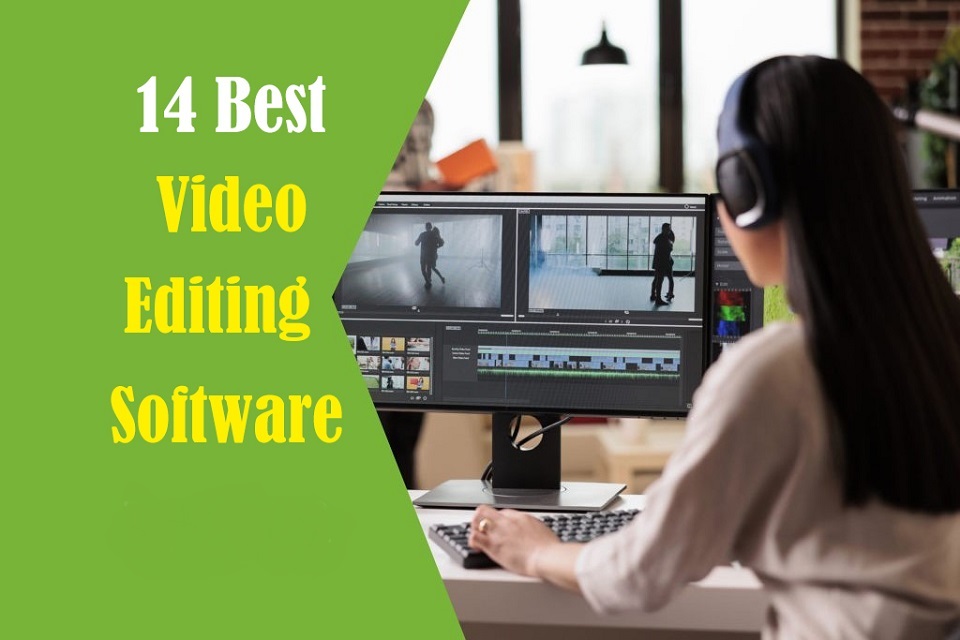
The best free video editing apps

In today’s digital age, video content is more popular than ever, It allows you to capture precious moments, create captivating vlogs, produce professional-grade films and more.

The Raw footage looks raw and messy, Videos do not always come out the way we want them, which is why it is so important to have the right video editing software.

From basic transitions to CGI effects, Having the right tools at your disposal can make a world of difference in the quality of your videos.

With so many options available on the market and each one boasting different perks, it can be confusing or difficult to pick the right editing platform.

How in depth does it need to be? Does it include many special effects features? Is it free, cheap or expensive? What platforms do they run on? Fear not!

In this article, we will explore and evaluate 14 of the best video editing software options available on Windows and Mac. We do it in the most straightforward possible language to convey what each delivers and the main differences.

All of these video editors are either entirely free to use or have an excellent free version. And their use ranges from basic to advanced.

Whether you’re a professional filmmaker, an aspiring YouTuber and TikToker, or simply someone who enjoys creating videos for personal use, there’s a great video editor out there for you.

How to Choose Video Editing Software?

Think about the features that you need for your video editing projects. It helps to make a list of the features you absolutely need, features that would be nice to have, and features you don’t really need.

Armed with this information, you will be less tempted to go all-in on that professional video editing software that comes with bells and whistles you’ll never use.

If you are looking forward to being a professional video editor we would suggest that you go with the paid software. As they carry some premium features that the free versions do not.

If you’re a beginner, it’s best to start with free or budget-friendly software and work your way up as you gain more experience.

The choice of the best video editor depends on your specific needs, skill level, and budget.

14 Best Video Editing Software
Whether you want a basic video editor or a tool to create professional-looking videos, this list can give you the best choices.

1. Adobe Premiere Pro

Adobe Premiere Pro is a professional-grade video editing software widely used in the industry. It offers a comprehensive set of tools for video editing, effects, transitions, and audio manipulation. It’s suitable for both beginners and advanced users.

2. Final Cut Pro

Final Cut Pro X is a powerful video editing software designed for Apple users. It offers a user-friendly interface and advanced features, making it a favorite among Mac users for marketing video production.

3. DaVinci Resolve

DaVinci Resolve is a feature-rich video editing software known for its color grading capabilities. It’s suitable for both editing and color correction, making it an excellent choice for visually impactful marketing videos.

4. Filmora

Filmora is a beginner-friendly video editing software available for both Windows and Mac. It offers an easy-to-use interface with a wide range of effects and templates, making it ideal for quick and straightforward marketing video production.

5. Vegas Pro

Vegas Prooffers a feature-rich environment for video editing, compositing, and audio production. It’s been a popular choice for both professionals and hobbyists.

6. Lightworks

Lightworks is a great free video editor with numerous tools to satisfy most casual video editors, although if you want more advanced features, you’ll need to pay for the privilege.

7. HitFilm

HitFilm is a popular video editing software that includes visual effects capabilities. It’s a good option for those on a budget who still want access to advanced editing features.

8. PowerDirector

PowerDirector is a relatively easy program to use and will make your video quality look professional.

9. iMovie

iMovie comes pre-installed on Mac computers and is a user-friendly video editing software for beginners. It offers basic editing tools, transitions, and effects, making it a great starting point for simple marketing videos.

10. VSDC

VSDC Video Editor is an amazing software for those who have a limited budget. It is inexpensive and allows users to create high quality content.

11. Shotcut

Shotcut is not a complicated program that supports almost all media file formats. Work with 4K, overlay effects, titles, audio, transitions, effects, and so on.

12. Openshot

Openshot provides high-quality output after editing, making it an excellent and free tool for basic video editing.

13. Corel VideoStudio

Corel VideoStudio has all the characteristics of the other top-of-the-line products on this list, including 360-degree VR and 4k support, but it also has the distinction of being the first piece of consumer video editing software to offer motion tracking.

14. Pinnacle Studio

Pinnacle Studio is an incredible video editor, with many welcome and powerful features and is well-suited for both beginners and intermediate users.

Conclusion

Whether you prioritize advanced features, ease of use, or budget-friendly options, one of these options above will fit your needs.

Take the time to evaluate your requirements, consider your level of expertise, and make an informed decision based on the software’s capabilities, pros, cons, system requirements, and cost.

With the right video editing software, you’ll be able to bring your creative vision to life and produce stunning videos that captivate your audience.

The key to mastering any video editing software lies in practice and experimentation. So don’t be afraid to explore the different features and tools offered by each software.

With dedication and passion, you’ll be well on your way to becoming a proficient video editor and achieving your creative aspirations!

Have you found a different free video editor you like? Tell us about it in the comments below.

Related posts: Best Laptops for Music ProductionBest Laptops for Graphic Design .

FAQs

How Does Video Editing Software Work?

Also known as a video editor, a video editing program allows you to edit and polish your video post-production with special tools and effects.

It breaks your video down into several clips or segments that you can move and manipulate to fit your needs.

The best video editing software should enable you to swiftly and efficiently edit your material, generate high-quality videos, and enhance your videos with special effects, transitions, and sound.

Who Uses Video Editing Software?

Both amateur and professional filmmakers utilize video editing software, and some television productions use it to create television programs.

You can use video editing software to edit most movie trailers, featurettes, and other things shown on the big screen.

Should I buy a laptop or desktop for video editing?

Desktop is a better option but if you want to edit video on the go, then obviously you need to have a laptop.

What is the best laptop for video editing?

Video editing process demands a lot of processing power, so get a laptop with fast CPU, Discrete Graphics card, ample RAM, and a good quality display.

Some best laptops for video editing include the Apple MacBook Pro, Dell XPS, Razer Blade, Lenovo ThinkPad, Asus Zenbook Pro, etc.

The more powerful the laptop is the better performance it can give in Video editing and rendering.

Is drawing pen tablet good for video editing?

For video editing in premiere pro and alike- a drawing pen tablet probably not much use, unless you are doing frame drawing.

If you’ve ever experienced carpal tunnel syndrome from using a mouse, you can have a try, The pen is less accurate definitely.

Source: https://pctechtest.com/best-video-editing-software

カテゴリー: apps review | 投稿者malaga 16:03 | コメントをどうぞ

What is the best software for 3D animation?

In today’s world, 3D animation has become an essential part of the entertainment industry. From movies, television shows to video games, 3D animation is used everywhere to create realistic and engaging visual experiences for the audience.

3D Animation software provides users with a platform to create, design, generate and develop animated 3D graphics, simulations, and drawings. They can help artists and designers to make the most unusual fantasies come to life.

If you’re looking to break into 3D animation, choosing your software is the most crucial starting point. A good software can help you save a lot of money, time, and effort.

There are plenty of 3D animation software available on the market, but no one ideal software for everyone. Some of the programs are simple, and a few are complicated. Choosing the best 3D animation programs requires consideration of a wide range of factors.

Fortunately, we have listed the 10 best 3d animation programs here, including both free and paid options, highlighting their pros and cons so you can make an informed choice.

What is 3D animation and its importance?

Unlike traditional 2D animation - 2D Animation software, 3D animation is the process of creating animated images and videos that appear to have three dimensions, using computer software.

The software allows artists to create 3D models of objects, characters, and environments. These 3D models are then rigged, animated, and rendered to create the final product.

3D is very technical and you have lots of other elements to consider outside of just animating: modeling, rigging, lighting, rendering, cameras, etc. And all of these things can break or run into issues…

The importance of 3D animation lies in its ability to create visually stunning and engaging content that can captivate audiences and effectively communicate complex ideas.

It is used extensively in film, television, video games, advertising, and education, among other industries.

How to choose the best 3D Animation Software?

Given that different software has different features, usabilities, and prices, it is imperative that you are aware of the program you acquire.

Some animation software is best suited to building games while others are suited to creating cartoons. So the best choice depends on the type of work you want to create.

Pixar, Rockstar, Epic Games and more all have their own approach to animation. Learn what the pros use, If you want to join these companies.

Of course, the cost is another important factor. Being a beginner you may not want to spend a lot on animation software.

10 Best 3D Animation Software

Are you a professional looking for the best premium 3D animation software, or an amateur seeking the best free option? There will be always suitable software in the list below for your choice.

Please note that the 3D animation software below demands high configuration computers to use, Otherwise you may experience frequent crashes.

1. Autodesk Maya

For making beautiful 3D animations, Autodesk Maya is the movies and visual effects industry standard.

Maya is great in doing character and industrial animation. It’s also easily customizable, this means that it can be easily integrated with other third-party software.

2. Autodesk 3DS Max

3DS MAX is a popular and easy to use 3D modeling, animation and rendering software.

It was first used in animation of computer games, and then began to participate in special effects production of film.

3. Cinema 4D

Cinema 4D is pretty easy to pick up, the rigging tools are great fun to work with if you need to do any TD work or just rig your own models for animation.

The animation tools are great to work with too and if that wasn’t enough you get the added bonus of the modeling and sculpting features.

4. Houdini

Houdini is mostly used for VFX and simulation, but you can use Animation in Houdini, especially when it comes to hair, body and muscle dynamics.

You could even use it to animate simulations for certain scenes quicker than animating simulations in other 3D software such as Maya or Blender.

5. Modo

Modo is a versatile 3D software program that can be used for a wide range of applications, including 3D modeling, texturing, animation, and rendering.

It has a clean and intuitive interface that is easy to use, making it ideal for beginners and professionals alike.

6. Blender

Blender, a free and open-source piece of software, is extremely well-liked for its adaptability, potent capabilities, and user-friendly design.

Blender provides a full feature set of tools for developing production quality 3D animations.

There are some complexities to Blender but nothing you can’t overcome.

7. Daz Studio

Daz Studio is fundamentally intended for 3D person demonstrating, delivering, and movement.

It offers an easy to use interface and many pre-made 3D models and resources.

8. iClone 8

iClone 8 is a popular software for creating real-time 3D animations, particularly for character animation and virtual production.

It offers a range of features such as motion capture integration, character customization, and real-time rendering.

9. Clara.io

Clara.io is an online 3D animation tool which has AI-powered features like automatic camera framing, motion capture for animation, automated lip syncing based on audio, and more.

You can create cartoon characters, rig them for animation, and use the AI tools to speed up the animation process.

10. Cascadeur

Cascadeur is a standalone software for 3D keyframe animation of humanoid or other characters.

Thanks to its AI-assisted tools, you can make key poses really fast, instantly see physical result and adjust secondary motion.

Conclusion

We hope the above list will help you find the perfect tool for your animation needs.

Every software has a few specific functions and gear that every other application can’t substitute. What you go with often comes down to budget, operating system and your tech skills.

Think about which features are most important to you and how you’re most likely to use animation software. It can be helpful to write a quick list of your top priorities, that way it’ll be easier to decide which animation software is best for you.

Many 3D animation software programs offer free trials. We highly recommend you try a few out to get an idea about how it’d look with your workflow.

Have you found the ideal option for your needs? Don’t forget to share it with me in the comments section below.

Related Posts: Veikk Drawing Pads , Best Laptops for GamingBest Laptops for College Students .

FAQs

What is the best free 3d animation software?

Blender is widely considered to be the best free software for making 3D animations.

It supports entirely 2D and 3D pipelines including modeling, rigging, animation, rendering, compositing, and video editing.

Additionally there are some industry standard tools out there that have free learning editions such as Houdini, Nuke, Clarisse.

Can I do 3D animation without drawing?

While drawing skills can be a valuable asset in the world of 3D animation, they are not a strict requirement.

Many successful 3D animators can still make great animations without knowing how to draw.

Do you need a drawing tablet for 3D animation?

No, Generally you don’t need a graphics tablet for 3D animation.

3D animators aren’t normally drawing anything, they’re adjusting controls created by riggers. And, for the most part, that means there’s no big advantage to a drawing tablet.

But graphic tablet is still a must-have for anyone looking to simplify the tedious animation and drawing processes.

Source: https://pctechtest.com/best-3d-animation-software

カテゴリー: apps review | 投稿者malaga 11:12 | コメントをどうぞ

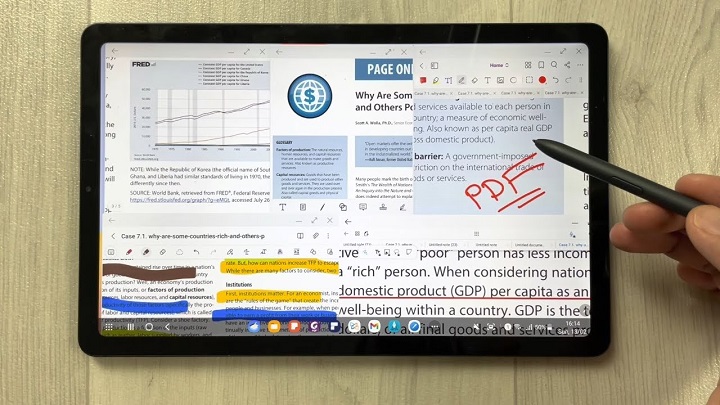
Best Free PDF Annotators on Windows, Mac, Android, and iPad

PDFs, known for their reliability and universal format, have long been the go-to choice for various documents.

However, the static nature of PDFs often limits the level of interaction one can have with the content.

When you want to annotate, highlight, markup and comment on a PDF document, you cann’t do so unless you have a PDF annotation app.

PDF annotation apps typically provide a range of features that allow you to draw shapes, highlight text, add notes, and create bookmarks.

They are great for everyone, including students, teachers, business professionals, and anyone working in academia.

There are a ton of PDF annotation tools available today. But which one is the best? Are there any good but also free apps? how many functions does a powerful pdf annotator have?

In this article, we will answer all your questions regarding PDF annotators, and we’ve also curated a list of the 10 best PDF annotation apps on Windows, Mac, Android, and iPadOS.

What is PDF annotation?

PDF annotation is adding suggestions in the form of comments or digital sticky notes to PDF documents in the proofing stage. Think eBooks, white papers, reports, etc.

What are the benefits of PDF annotation?

Annotating PDF is not only a great way to highlight important sections of your document, but it also allows you to store information and collaborate with others.

Another benefit of using an annotation tool is that it’s an efficient means of feedback, which help you remember more and be more productive.

What are the different types of PDF apps?

There are 3 types of PDF apps, including:

1. PDF reader apps help you read PDF files, allowing you to do things like flip through pages, search for phrases, highlight text, and perhaps sign digital forms.

2. PDF annotation apps let you add comments, rearrange pages, add shapes, and insert new text blocks and images.

You can add as much to the document as you want, but you can’t change the core, original PDF text.

3. PDF editor apps allow you to change anything in a PDF. You can also create PDFs and forms from scratch in a PDF editor app.

In this article, we are focusing only on PDF annotation and editor apps.

How to choose the best PDF Annotation Software?

The annotations will make sure that your point of view, along with the original content, is visible to whoever has access to your PDF.

When choosing software, these are the things that you need to ensure that your annotation tool has:

A highlight section.

Strikethrough function.

Copy text function.

Ability to add hand drawings and shapes.

While there are some advanced tools out there that will offer you way more than this, these four features are absolute essentials when it comes to annotation software.

If your software has these, rest assured that your annotation experience will be seamless, and you can actually make alterations to your PDF whenever and however you like.

Other Advanced Features include:

Collect signatures: You can send signature requests and let people sign off on documents to mark them for approval.

Add a stamp: You can add a digital stamp to a document, similar to a stamp of approval on physical documents.

Import/export comments: You can import or export comments from one PDF document to another.

Shareable review links: You can create shareable links to your reviews and send them out to anyone to ask them to review a relevant comment in a PDF.

OCR: The OCR features allow you to convert PDF documents into text format.

10 Best PDF Annotation Apps for Windows, Mac, Android & iPad

PDF annotators have made our lives much easier. They not only improve productivity at work but also allow you to collaborate seamlessly with others.

Below are the most popular PDF annotation apps to use, some are free and others are not.

1. Adobe Acrobat

2. Xodo PDF Reader & Editor

3. Foxit PDF Reader

4. Drawboard PDF

5. PDF Expert

6. PDFelement

7. PDF-XChange Editor

8. PDFgear>

9. Xournal ++

10. LiquidText

Conclusion

These 10 best PDF annotation apps can help you annotate your PDFs and do more with them if you need.

It doesn’t seem like there’s a clear winner. Each app offers a unique set of features and platform compatibility, allowing you to work effortlessly.

Different software being better for different kinds of users. The best one for you will likely come down to price, needs, accessibility, and ease of use.

For example, if you’re an Android user and all you need to do is sign the occasional form, Xodo is probably more than enough.

But if you edit eBooks for a living, you may want to invest in a more comprehensive editor like Adobe Acrobat.

Hope this Article helps you a lot.

FAQs

Why is PDF such a popular file format?

PDF file has the perfect balance of file size, portability, editability, compatibility and quality.

The PDF file format is the preferred configuration for documents as it helps them retain their designs appropriately.

Then, it also enables document creators and users to keep their content almost permanently.

It can be viewed, shared, and printed on various operating systems without the need for the original software or fonts used to create the document.

How to annotate in PDF Document?

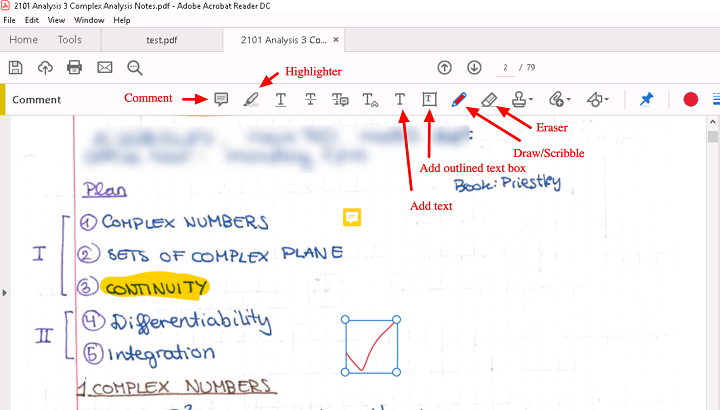
Open a PDF in annotation app like Adobe Acrobat, go to the tool center and select “Comment” .

The comment toolbar will appear above the PDF. Next, you can tap any of them to annotate your PDFs.

You can add text boxes and sticky notes, underline text, strikethrough content, highlight text, and more.

Save your file. You can also use the Share With Others icon to send the file to others for commenting.

Can you annotate a PDF with a graphic tablet or pen?

A drawing tablet with pen like WacomAndroid pen tablet, or Apple ipad does have the ability to write in pdf annotation app.

To do this, select the drawing tool in app and you’ll be able to write and draw on any pdf.

As you can see, when you have a tablet with stylus, marking up and annotating PDFs is an easy task.

It feels natural like pen and paper, so even signing and filling out forms electronically just feels right.

We highly recommend you get a pen tablet for PDF annotation.

Can I use a note taking app for annotating PDF?

Apps for Note Taking like OneNote, GoodNotes, Notability, Nebo, Noteshelf, Zoomnotes, Samsung Notes, Squid and more also gives its users the privilege to annotate PDFs on any device of their choice.

How do I annotate a PDF in Chrome?

You can install the Adobe Acrobat extension in your Chrome browser. Then you can easily open PDF file and annotate using the Comment option.

How to annotate a PDF with Microsoft Edge?

Right-click the PDF file you want to edit. Then click Open with > Microsoft Edge.

Your PDF will open in a Microsoft Edge window along with a menu bar of annotation tools: highlight, draw, erase, and add text.

After annotating, save your pdf file through save as option, and the new saved file will work fine. All annotation and editing options will work on it.

Source: https://pctechtest.com/best-pdf-annotation-apps

カテゴリー: apps review | 投稿者malaga 10:22 | コメントをどうぞ