
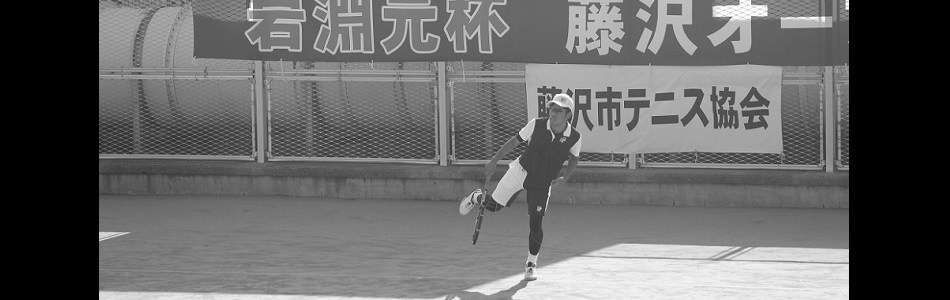
大会終わったので、早速メインHDアスタポリ、クロスプライムガットを張って打ちました、雨の中。
初打ちが雨とかナチュラルじゃ洒落にならないのですが、トリプルシールテクノロジーがあるので大丈夫!だと思いたい・・・
これでフェデ張り、通常張り両方同じガット同じテンションで試しましたが、どっちも自分にはイマイチでした。
HDアスタポリ単体の方がキレもスピードも良いです。もはや回し者レベルの推しです。
縦ポリの場合も、どうしても当たりが不安、勢いが出ない。
しかしイロイロ検索かけてみても縦ポリ、横柔らかい系ハイブリッドは好評価ばかりの様子。
どうしても自分ではナチュラルガットの力を引き出せていないみたいです。
もっと言えばせっかくのご自慢のグラファイトも使いこなせていないのだろうと思う。まず重過ぎだし。
自分の打球音はやたら弱々しい気がします。
ぷぁ~んみたいな音ばっかです。
上手い人って打球音もそれっぽいと思います。
凄みが溢れ出しているような音。
今年は恥を忍んで身の丈に合わなそうな大会に出るようにして、毎度初戦負けしてきましたが、やはりそういうレベルでテニスしている人達と比べると足りない部分が多いと感じます。
事前に大会で当たる人の名前を検索して調べてみると、テニスコーチだったり、草大会で入賞していたり、そういう人ばかり。
自分はどんなに小さい大会でもまだ優勝した事が今まで一度もありません。
結果が載っている人は試合に勝つ能力があり、自分は同じ土俵にも立てていない段階。
うーん、来年は勝負になるレベルになりたい。












To increase your chances of success in the game, use proven strategies and [url=https://www.jituangkatop.com/]w3 angka jitu toto[/url].
Modern tools and software assist in refining angka jitu toto predictions.
[url=https://casino-fc777.com/]fc 777 casino[/url] offers the best slot machines and generous bonuses for all players.
In conclusion, the development potential of fc777 remains highly promising.
Experience thrilling gameplay and rewarding moments with [url=https://deepai.org/profile/777bet/]777bet online casino[/url], where each spin brings fresh excitement and new possibilities to win.
It attracts both novice and experienced gamblers by combining simplicity with comprehensive betting features.
snipping tool alternative
Best Screenshot Tool for Windows 10 & 11
If screenshots are a regular part of your workflow, the default Windows Snipping Tool quickly becomes a limitation. Additional steps, lack of cloud uploads, no instant links, and slow interaction make it unsuitable for today’s workflows. A proper screenshot tool should be invisible, fast, and optimized around a single flow: capture, upload, and share.
This minimal screenshot tool for Windows 10 & 11 is built exactly for that. Press PrtScn, select any region of the screen, release — and the screenshot is already uploaded. A shareable link is automatically copied to the clipboard. No save dialogs, no browsing folders, no manual uploading.
Area capture works precisely and predictably. A clean crosshair selector allows pixel-accurate selection, allowing easy capture of interface elements, code fragments, charts, or partial screens — faster and more dependable than the default Snipping Tool.
Full screen capture is just as simple. Press Shift + PrtScn to instantly capture the full desktop. The result is a full-resolution screenshot perfect for documentation, presentations, and bug reports, without delays or popups breaking the workflow.
The key advantage is instant cloud upload. Every screenshot is uploaded automatically, with the link ready in milliseconds. You can paste it directly into messengers, emails, or support tickets without interacting with the file system or external image hosting services.
The tool works quietly from the system tray and remains out of your workflow. RAM usage stays below 50MB, launch time is virtually instant, and the installer size is just 2MB. When compared to heavier alternatives like Greenshot, Lightshot, or ShareX, the performance and responsiveness difference is obvious immediately.
Privacy is treated properly. There are no ads, no analytics, no tracking, and no background data collection. Screenshots often contain sensitive information, and this tool handles them appropriately — and no unnecessary processes running behind the scenes.
Hotkeys are fully customizable. You can map PrtScn, Ctrl+Shift+S, or any custom key combination, and adjust image quality or behavior without bloated settings panels or cluttered menus.
Windows Snipping Tool functions, but it stops after capture. It provides no cloud workflow, no instant sharing, and no performance optimization. This tool replaces it by focusing on what truly matters: capturing information and sharing it instantly.
If screenshots are part of your daily work in development, support, remote work, or documentation — speed and simplicity are not optional. A proper screenshot tool should feel built into the system, not like a separate application.
snipping tool alternative Best Screenshot Tool for Windows 10 & 11 If screenshots are a regular part of your workflow the default Windows Snipping Tool quickly becomes a limitation. Multiple steps no cloud support no instant sharing links and sluggish interaction make it impractical for modern workflows. A professional screenshot utility should be invisible fast and optimized around a single flow: capture upload share. This lightweight screenshot utility for Windows 10 and 11 is designed precisely for this purpose. Press PrtScn select a region on the screen release and the screenshot is instantly uploaded. The shareable link is copied to the clipboard automatically. No save prompts no directories no manual file handling. Region capture is accurate and consistent. A clean crosshair selector allows pixel-accurate selection which makes capturing UI elements code snippets charts or partial screens effortless — faster and more reliable than the standard Snipping Tool. Full-screen capture is equally straightforward. Use Shift PrtScn for immediate full desktop capture. The result is a full-resolution image perfect for documentation presentations and bug reports without delays or popups breaking the workflow. The main advantage is instant cloud uploading. All screenshots are uploaded automatically with the link ready in milliseconds. You can paste the link directly into chats emails or support tickets without touching the file system or third-party image hosts. The tool works quietly from the system tray and remains out of your workflow. Memory usage stays under 50MB RAM startup is instant with an installer that is only 2MB. Compared with heavier tools such as Greenshot Lightshot and ShareX the performance and responsiveness difference is obvious immediately. Privacy is handled responsibly. There are no ads no analytics no tracking and no background data collection. Screenshots may contain sensitive information and this tool treats them accordingly — and no unnecessary processes running behind the scenes. Keyboard shortcuts are fully customizable. You can map PrtScn CtrlShiftS or any custom key combination and fine-tune image quality and behavior without heavy settings panels or cluttered menus. The default Windows Snipping Tool works but only handles capture. It offers no cloud workflow no instant sharing and no speed optimization. This tool replaces it by focusing on what actually matters: capturing data and sharing it without delay. If you capture screenshots daily for development support remote work or documentation — speed and simplicity are essential. A modern screenshot tool should feel like a native system feature not a standalone app.