
これからしばらくはマメにZEPPテニススイングセンサーで録ったデータをエクセルで記録していこうと思っています。
一応以前から、エクセルの無い古いパソコンでグーグルスプレッドを何度もフリーズしながら操作したり、スマホのエクセルに入れる為に一度書き出したり・・・
色々手間かけてやっていましたが、パソコンを買い換えた今、そんな苦労とはおさらば!
普通の機能だろってツッコミも何のその、とりあえずこんな感じで記録表を作りました。
と言っても、以前のブログで書いたようなスイングスピード、フラットとスピンの打球回数、ラケットの真ん中に当たった割合=真ん中率に加えて、打球回数からざっくりフォアとバック、フラットとスピンの割合をパーセント表示にした、ぐらいです。
しかしまとめるのが楽になった(自分比)ので、これからはよりデータを活用できそうな予感がします。
ZEPPセンサーはどうもはっきりと数値を使って前日とのデータの差とか教えてくれないので、自分のテニスが変化しているのか、という部分では分かり難い。
かと言ってエクセルファイルの方も前日との比較とか一月の集計とかまだ特に方法は考えないでとりあえず一日の記録用しか作ってないけど、フォアとスピンの割合で多い方に色着けて自分のストロークの特色示したり、真ん中率に応じて色変えたり、ゆるーくですが工夫してみました。
で、記録表に試しにこの前の草試合の時のデータを載せてみましたが・・・
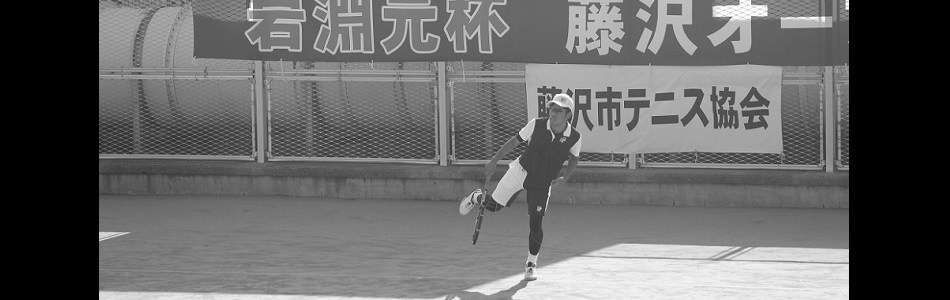
うーん、スピンのつもりのバックハンドは相変らずフラット多め、怪しいスピンの真ん中率100%。しかも打球回数がフォア53%、バック47%、3セットひたすらバック狙われ続けた爪痕が残ってますね(笑)












Chào anh em bác nào muốn tìm sân chơi đẳng cấp để chơi Tài Xỉu đừng bỏ qua chỗ này. Tốc độ bàn thờ: https://pacebhadrak.org.in/#. Húp lộc đầy nhà.
Xin chào 500 anh em người anh em nào cần chỗ nạp rút nhanh để gỡ gạc Nổ Hũ thì xem thử chỗ này. Không lo lừa đảo: https://gramodayalawcollege.org.in/#. Húp lộc đầy nhà.
Dola789 đăng nhập Dola789 Link không bị chặn or Dola789 Nhà cái Dola789 https://www.google.com.sb/url?q=https://securityheaders.com/?q=https://gramodayalawcollege.org.in/ Nhà cái Dola789 https://docs.whirlpool.eu/?brand=bk&locale=de&linkreg=https://gramodayalawcollege.org.in Tải app Dola789 and http://lostfilmhd.com/user/wgpnccngdf/ Nhà cái Dola789 Link không bị chặn Tải app Dola789 nhà cái dola789 Tải app Dola789 and Tải app Dola789 nhà cái dola789
Chào cả nhà bác nào muốn tìm chỗ nạp rút nhanh để cày cuốc Nổ Hũ thì xem thử chỗ này. Không lo lừa đảo: https://homemaker.org.in/#. Húp lộc đầy nhà.
snipping tool alternative
The Best Screenshot Utility for Windows 10 & 11
If taking screenshots is part of your everyday work, the built-in Windows Snipping Tool quickly starts to feel limiting. Extra steps, no cloud upload, no instant links, and slow interaction make it impractical for modern workflows. A modern screenshot tool must stay out of the way, work fast, and focus on a single process: capture, then upload and share.
This lightweight screenshot tool for Windows 10 and 11 is built exactly for that. Press PrtScn, select any region of the screen, release — and the screenshot is already uploaded. The sharing link is placed in your clipboard automatically. No save dialogs, no browsing folders, no manual uploading.
Region capture is accurate and consistent. A simple crosshair selector enables pixel-level accuracy, which makes capturing UI elements, code snippets, charts, or partial screens effortless — faster and more reliable than the standard Snipping Tool.
Capturing the entire screen is just as easy. Use Shift + PrtScn to capture the entire desktop instantly. The result is a full-resolution image ideal for documentation, presentations, or bug reporting, without delays or popups interrupting the workflow.
The main advantage is instant cloud uploading. Each screenshot is uploaded automatically, and the link is available in milliseconds. You can paste it directly into messengers, emails, or support tickets without touching the file system or third-party image hosts.
The application runs silently in the system tray and is built to stay unobtrusive. Memory usage stays under 50MB RAM, startup is instant, and the installer size is just 2MB. Compared to heavier alternatives like Greenshot, Lightshot, or ShareX, the performance and responsiveness difference is obvious immediately.
Privacy is handled responsibly. No advertising, no analytics, no tracking, and no background data collection. Screenshots may contain sensitive information, and the application treats them with proper care — with nothing unnecessary running in the background.
Hotkeys are fully customizable. You can assign PrtScn, Ctrl+Shift+S, or any shortcut you want, and fine-tune image quality and behavior without heavy settings panels or cluttered menus.
Windows Snipping Tool functions, but it stops after capture. It offers no cloud workflow, no instant sharing, and no speed optimization. This tool serves as a replacement by focusing on what matters most: capturing information and sharing it instantly.
If you capture screenshots daily for development, support, remote work, or documentation — speed and simplicity are essential. A modern screenshot tool should feel like a system feature, not an application.